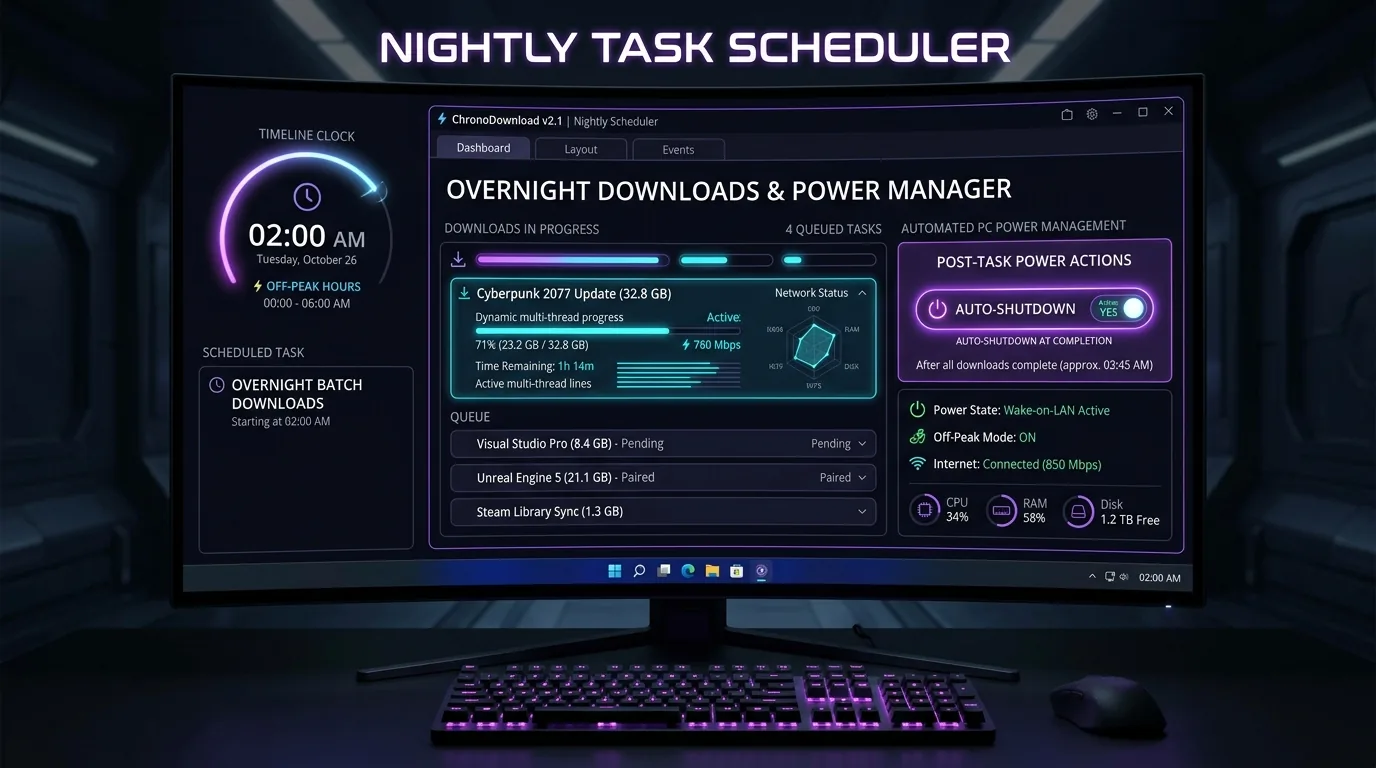
Direct Answer: To set up overnight downloads and auto-shutdown in Windows 11 without sleep mode interruptions, use Vortex Downloader‘s built-in Task Scheduler. Queue your target files (large games, 8K video playlists, torrents, or ISO images) in a paused state, open the Scheduler (Ctrl + S), and set an off-peak start window (e.g., 02:00 AM). Enable “Shutdown Computer When Downloads Complete”. Vortex automatically hooks the Windows 11 Win32 API SetThreadExecutionState(ES_SYSTEM_REQUIRED) to prevent Modern Standby (S0ix) from cutting network sockets while transfers are active, flushes assembled file segments to disk, and triggers a clean system shutdown or hibernation upon completion with a 60-second abort countdown.
Table of Contents
- Why Schedule Overnight Downloads? (ISP Throttling, Contention & Power)
- The Windows 11 Sleep Trap: Why Modern Standby Destroys Default Transfers
- Step-by-Step Guide: How to Schedule Downloads & Auto-Shutdown with Vortex
- Power State Engineering: Shutdown (S5) vs Hibernate (S4) vs Sleep (S3)
- Comparison Matrix: Vortex Scheduler vs Windows Task Scheduler vs CLI Scripts
- Fail-Safe Network Checklist: Wi-Fi Sleep, Green Ethernet & DHCP Leases
- Frequently Asked Questions (FAQ)
- Conclusion: The Ultimate Automated 2026 Nightly Download Pipeline
1. Why Schedule Overnight Downloads? (ISP Throttling, Contention & Power)
In an era of 100 GB game patches, 8K raw video archives, and massive dataset distributions, pulling tens of gigabytes across your internet connection during normal daytime hours introduces massive digital friction. Scheduling your heaviest file transfers to execute during the early morning hours (typically 1:00 AM to 6:00 AM) offers three overwhelming advantages:
A. Eliminating ISP Traffic Shaping & Daytime Peak Contention
Internet Service Providers (ISPs) worldwide implement aggressive traffic shaping and packet prioritization algorithms during peak domestic windows (7:00 PM to 11:00 PM). Neighborhood optical nodes and DOCSIS cable lines experience heavy saturation as hundreds of households stream video, attend conference calls, and browse concurrently.
During off-peak night hours, network node congestion collapses to near-zero. Routing backbones deliver lower round-trip times (RTT), zero packet jitter, and uncapped TCP throughput. Many regional broadband providers also offer unmetered off-peak data caps, meaning 500 GB downloaded between 2:00 AM and 7:00 AM does not count against your monthly metered allowance.
B. Eradicating Household Bufferbloat & Latency Spikes
Maxing out your gigabit connection during the afternoon saturates home router packet buffers (a phenomenon known as bufferbloat). The result is catastrophic for everyone sharing the local network: ping spikes from 15 ms to 800 ms in competitive online games, freezing 4K smart TV streams, and dropped audio packets in Zoom calls. Moving heavy transfers to 3:00 AM ensures you enjoy 100% full broadband velocity while your family sleeps peacefully.
C. Hardware Energy Conservation & Component Lifespan
Leaving a modern gaming rig or high-end workstation running 24/7 consumes significant electrical power. A modern workstation with an Intel Core i9 or AMD Ryzen 9 processor, paired with an NVIDIA RTX GPU and active liquid cooling pumps, draws between 90W and 160W at idle. Over a year, leaving that machine powered on all night adds $60 to $150 to your electricity bill for zero productivity.
By pairing automated off-peak scheduling with an event-driven auto-shutdown trigger, your machine wakes up or begins transferring at 2:00 AM, pulls files at maximum 32-stream throughput, and powers completely off the moment the last byte is validated.
2. The Windows 11 Sleep Trap: Why Modern Standby Destroys Default Transfers
Nearly every Windows user has attempted an overnight download in Google Chrome, Microsoft Edge, or a standard utility, only to wake up the next morning and find their download failed at 14%. Why does this happen?
The culprit is Windows 11’s modern power management architecture. Understanding this failure mode is essential to solving it.
⚠️ The Modern Standby (ACPI S0ix) Socket Drop
Unlike legacy Windows 7 and Windows 10 power plans that utilized classic ACPI S3 sleep, modern Windows 11 PCs (particularly laptops and pre-built OEM desktops) utilize Modern Standby (S0 Low Power Idle). When Windows detects no physical mouse or keyboard input for 15 to 30 minutes, it enters connected standby, selectively suspending user-mode application threads and placing PCIe Wi-Fi/Ethernet NICs into low-power states (D3hot/D3cold).
When Windows cuts power to the network adapter, remote web servers see an unacknowledged TCP window timeout. The remote server immediately transmits a TCP RST (Reset) packet or terminates the connection. Web browsers treat this socket reset as a fatal network error and mark the download as “Failed – Network Error”, leaving incomplete chunks that cannot be resumed without restarting the entire transfer.
How Vortex Overcomes Windows 11 Sleep: Native Win32 Power Assertion
To guarantee that downloads complete without interruption, Vortex Downloader interfaces directly with the Windows kernel power subsystem via the native Win32 API function SetThreadExecutionState:
// Vortex Native Power Lock Engine
SetThreadExecutionState(
    ES_CONTINUOUS |        // Keep power requirement locked until explicitly cleared
    ES_SYSTEM_REQUIRED |    // Prevent system sleep, CPU throttling, and idle suspension
    ES_AWAYMODE_REQUIRED   // Enable Windows Away Mode (display powers off, background tasks continue)
);
While an active queue is running in Vortex:
- The CPU Remains Active: Windows treats the process as an active media streaming or computation workload.
- The Network Stack Stays Energized: Network interface controllers (NICs) remain in full-power D0 operational state.
- Displays Can Sleep Safely: Vortex does not assert
ES_DISPLAY_REQUIREDunless previewing video, allowing your monitors to enter standby and save power while background byte slicing continues. - Automatic State Teardown: As soon as the final file in your scheduled queue finishes and passes checksum verification, Vortex releases the power lock via
SetThreadExecutionState(ES_CONTINUOUS), freeing Windows to enter sleep or execute the configured auto-shutdown action.
3. Step-by-Step Guide: How to Schedule Downloads & Auto-Shutdown with Vortex
Setting up an automated overnight download run in Vortex Downloader takes less than three minutes. Follow this visual configuration workflow:
Step 1: Build Your Queued Download List
Add all target URLs, media links, or torrent magnet files to Vortex Downloader. You can do this by:
- Clicking “Add URL” (or pressing
Ctrl + N). - Letting the Clipboard Monitor auto-detect copied URLs.
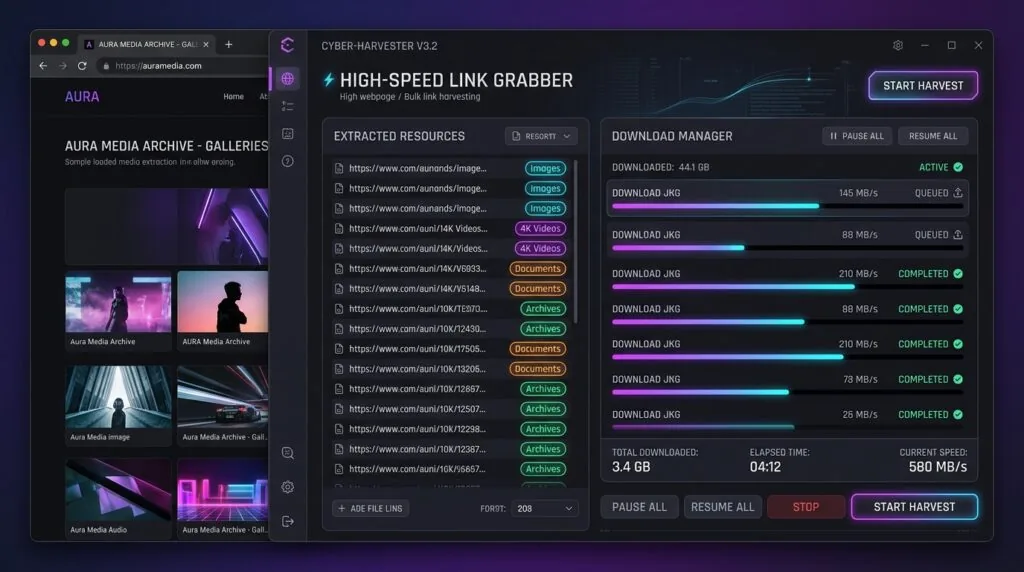
- Using the Vortex Browser Companion Extension to batch-send files directly from Chrome or Firefox using the webpage batch grabber.
When the download confirmation modal appears, choose “Queue for Later” (or hit Pause). The files will sit safely in your queue list waiting for the scheduler to trigger.
Step 2: Launch the Vortex Task Scheduler
In the Vortex top navigation bar, click Tools ➔ Task Scheduler or press the hotkey Ctrl + S. The cyber-kinetic scheduling matrix will open, giving you granular control over time windows, speed limits, and post-task power routines.
⏱️ Key Scheduling Parameters
- One-Time vs Recurring: Choose whether the schedule applies strictly to tonight or repeats every night of the week.
- Start Execution Window: Set the exact time you want downloads to commence (e.g.,
02:00 AM). - Stop Execution Window (Optional): Set a strict cutoff time (e.g.,
06:30 AM) to guarantee all downloads halt before morning remote work begins.
Step 3: Define Execution Windows & Active Days
Toggle “Enable Start Time” and set the clock to your desired off-peak window. If your internet service provider provides free unmetered data between 2:00 AM and 7:00 AM, configure:
- Start Time:
02:05 AM(giving your ISP’s billing cycle a 5-minute buffer to transition). - Stop Time:
06:55 AM(ensuring all streams cleanly terminate before peak billing resumes). - Days of the Week: Select Monday through Sunday, or customize for weekend-only heavy transfers.
Step 4: Configure Off-Peak Concurrency & Speed Limits
By default, Vortex allocates up to 32 parallel connections per file. However, when downloading a queue of 20 files, downloading all 20 simultaneously can choke router NAT tables. In the Scheduler settings:
- Set Maximum Active Downloads to
2or3files simultaneously. This ensures maximum multi-threaded byte slicing on active files while remaining tasks queue cleanly. - If other home automation devices, security cameras, or IoT hubs require bandwidth during the night, configure the Speed Limiter to cap Vortex at 80% of your maximum line rate.
Step 5: Arm Automated Post-Download Shutdown
At the bottom of the Scheduler dialog, locate the “Post-Download Actions” container:
- Check the box labeled “When all scheduled tasks finish”.
- Select “Shutdown Computer” from the dropdown menu (alternatively, select “Hibernate” or “Sleep”).
- Optional: Check “Close Vortex Downloader” to safely release all memory and terminate background helper hosts before system power-off.
- Click “Apply & Arm Scheduler”.
A green glowing badge will appear in the Vortex footer status pill: Scheduler Active • Armed for 02:05 AM. You can now leave your workstation running or let your monitors sleep—Vortex will handle the rest autonomously.
4. Power State Engineering: Shutdown (S5) vs Hibernate (S4) vs Sleep (S3)
When selecting what happens to your PC after overnight transfers finish, choosing the right ACPI power state depends on your hardware profile and morning workflow:
Why Vortex Uses Graceful API Shutdowns Instead of Force-Killing Processes
A major flaw of third-party auto-shutdown utilities is that they execute aggressive commands like shutdown.exe /s /f /t 0. The /f (force) flag forcibly terminates running applications without giving them time to flush memory buffers or commit open database transactions.
When a download finishes, several critical disk operations must complete before power can be safely severed:
- Byte Assembly: Multi-threaded slice files stored in temporary disk blocks (
.vortex_part) must be merged into the final container. - Windows Defender Security Check: Automated Windows Defender scans verify file integrity.
- State Persistence: The download history SQLite database must commit transaction logs to prevent database corruption.
Vortex invokes the Win32 API function ExitWindowsEx(EWX_SHUTDOWN | EWX_POWEROFF, SHTDN_REASON_MAJOR_APPLICATION). This notifies all open Windows applications to save unsaved state, flushes operating system file system caches, and shuts down the computer cleanly without data loss.
5. Comparison Matrix: Vortex Scheduler vs Windows Task Scheduler vs CLI Scripts
Power users often ask: “Can’t I just use Windows Task Scheduler or a PowerShell shutdown command?” While DIY command-line workarounds are possible, they suffer from fatal weaknesses when handling dynamic web downloads. Here is how native Vortex scheduling compares to alternative approaches:
The fatal flaw of running a manual timer like shutdown /s /t 7200 (shut down in 2 hours) is that network speeds are unpredictable. If a 40 GB download slows down due to temporary server congestion and takes 2 hours and 10 minutes, the timer shuts down your computer right in the middle of byte assembly, leaving you with a half-downloaded, broken file. Vortex eliminates this guesswork completely by listening directly to the download queue state: it triggers shutdown only when 100% of bytes are verified and saved.
6. Fail-Safe Network Checklist: Wi-Fi Sleep, Green Ethernet & DHCP Leases
To ensure 100% reliability during unattended overnight runs on Windows 11, review this 4-point network hardware checklist:
1. Disable “Allow the computer to turn off this device to save power”
Windows 11 power management frequently puts wireless and wired network cards into power-saving mode when no user input is detected. To disable this:
- Press
Windows Key + Xand select Device Manager. - Expand Network adapters.
- Right-click your active Wi-Fi or Intel/Realtek Ethernet adapter and select Properties.
- Navigate to the Power Management tab.
- Uncheck “Allow the computer to turn off this device to save power” and click OK.
2. Disable Energy Efficient Ethernet (EEE / Green Ethernet)
Many modern Realtek and Intel 2.5GbE Ethernet controllers feature Energy Efficient Ethernet (IEEE 802.3az). In rare cases, when traffic pauses between queued download items, the NIC enters low-power idle and fails to renegotiate the link speed in time, dropping the next queued download. In your adapter properties under the Advanced tab, set Energy Efficient Ethernet and Green Ethernet to Disabled.
3. Verify Windows Wake Timers Are Enabled
If you want Vortex to wake your computer up from sleep at 2:00 AM, Windows must allow RTC wake timers:
- Press
Windows Key + R, typecontrol powercfg.cpl, and hit Enter. - Click “Change plan settings” next to your active power plan, then click “Change advanced power settings”.
- Expand Sleep ➔ Allow wake timers.
- Set both On battery and Plugged in to Enable.
You can verify that Vortex has successfully registered a wake timer by opening PowerShell as Administrator and running:
powercfg /waketimers4. Router DHCP Lease Renewal Resilience
Many consumer home routers re-issue local IP DHCP leases every 24 hours (often in the middle of the night). If your router drops your local IP connection for 3 seconds at 3:15 AM, standard browser downloads die permanently. Vortex Downloader includes an exponential backoff socket retry engine that silently buffers transfer state for up to 60 seconds, reconnects as soon as the DHCP handshake completes, and resumes downloading without dropping a single byte.
7. Frequently Asked Questions (FAQ)
Why does Windows 11 sleep mode interrupt my downloads?
Windows 11 utilizes Modern Standby (ACPI S0 low-power idle), which suspends desktop application threads and places network adapters into low-power states after a period of user inactivity. When Windows cuts network power, TCP sockets drop with connection reset (RST) packets, terminating standard browser downloads. Vortex Downloader prevents this by asserting SetThreadExecutionState(ES_SYSTEM_REQUIRED | ES_CONTINUOUS) flags, keeping the operating system and network ring awake strictly until the active queue finishes.
Can Vortex Downloader wake my Windows 11 PC from sleep to start downloads?
Yes. If your motherboard firmware (UEFI) and Windows 11 power plan have “Allow Wake Timers” enabled in Advanced Power Settings, the Vortex Scheduler registers an ACPI Real-Time Clock (RTC) wake timer. When the scheduled start hour arrives (e.g., 2:00 AM), Windows automatically wakes the PC, initializes the network adapter, and commences downloading.
Will auto-shutdown corrupt partially downloaded files or open database chunks?
No. Unlike abrupt command-line shutdown scripts, Vortex initiates system shutdown only after every completed file passes integrity checksum verification, byte assembly, and disk flushing. If an individual file fails mid-transfer before the scheduled stop time, Vortex safely commits downloaded segment offsets to its persistent transaction log so the file resumes seamlessly on your next boot.
Is it better to choose Shutdown, Hibernate, or Sleep after downloads finish?
For maximum power savings on high-wattage desktop workstations, Shutdown (ACPI S5) is recommended because it completely draws zero idle power. For laptops or users who want their open browser tabs and workspace instantly restored the next morning, Hibernate (ACPI S4) is ideal because it writes RAM contents to hiberfil.sys before cutting power.
Can I abort the automated shutdown if I am still using my computer?
Yes. When the queue finishes, Vortex displays a prominent 60-second visual and audible countdown dialog with a “Cancel Shutdown” button. Clicking Cancel or pressing Escape aborts the shutdown sequence and keeps your computer running normally.
Can I schedule overnight downloads on a laptop with the lid closed?
By default, closing a laptop lid triggers system sleep. To download overnight with the lid closed, open Windows 11 Control Panel > Power Options > “Choose what closing the lid does” and set “When I close the lid (Plugged in)” to “Do nothing”. Ensure adequate airflow around your laptop chassis to prevent thermal throttling during multi-gigabit downloads.
8. Conclusion: The Ultimate Automated 2026 Nightly Download Pipeline
Automating your large file downloads overnight is one of the highest-leverage productivity and bandwidth upgrades available to modern Windows users. By scheduling transfers during unmetered, low-latency off-peak hours, you bypass daytime ISP throttling, eliminate household bufferbloat, and ensure your multi-gigabyte ISOs, game updates, and video playlists are ready the moment you wake up.
Ready to Automate Your Overnight Transfers?
Experience seamless off-peak scheduling, 32-stream multi-threaded acceleration, and intelligent auto-shutdown with Vortex Downloader for Windows 10 and 11.
![Why IDM Freezes or Gets Stuck at 99% (And How to Fix It) [2026 Guide]](https://vortexdownloader.org/wp-content/uploads/2026/10/why-idm-freezes-at-99-fixes-1024x572.webp)
![Why uTorrent Keeps Crashing on Windows 11 & 10 (7 Proven Fixes & Modern Alternatives) [2026]](https://vortexdownloader.org/wp-content/uploads/2026/10/why-utorrent-keeps-crashing-windows-11-fixes-1024x572.webp)