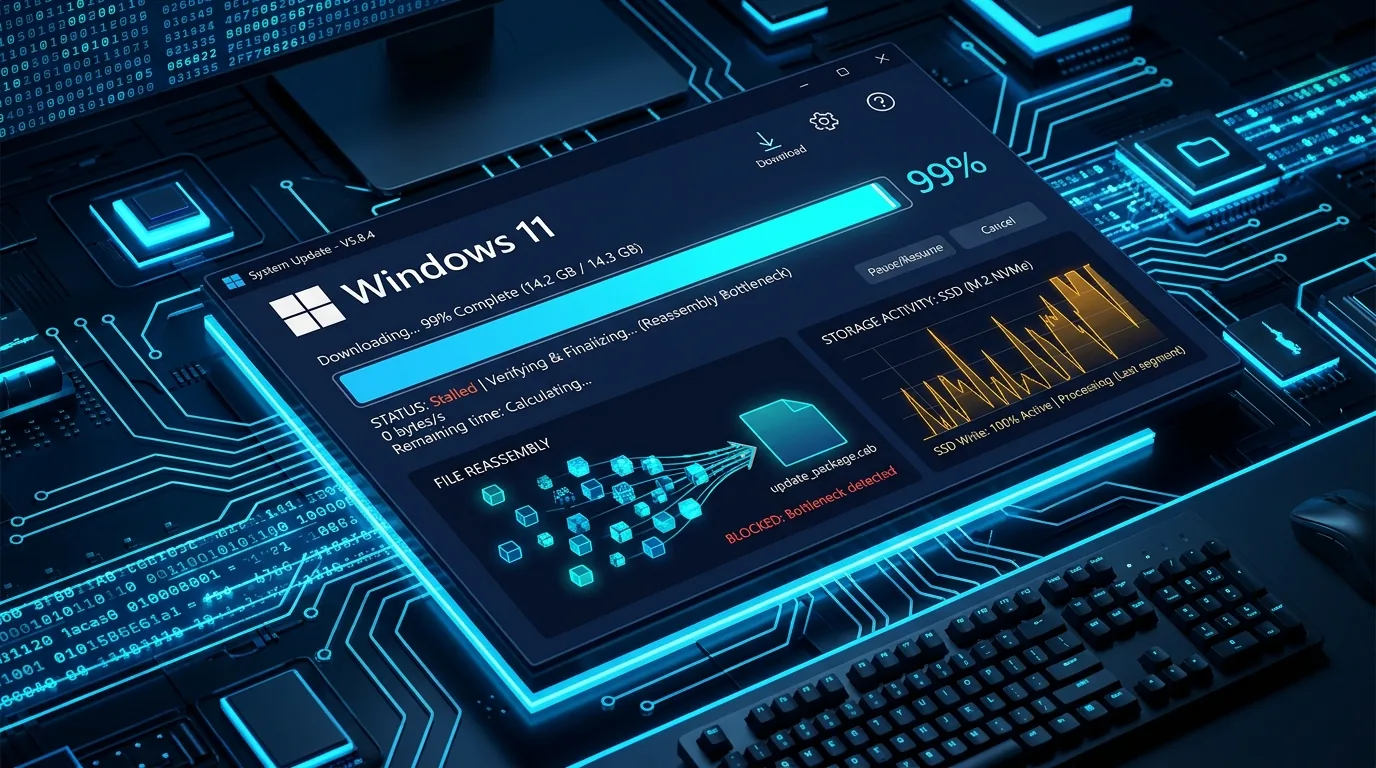
Few technical experiences are more infuriating than watching a 30 GB file cruise effortlessly from 0% to 99%, only to screech to a dead halt with 0 KB/s transfer speed, a frozen application window, or a sudden “Download stopped” error. Whether you are using Internet Download Manager (IDM), a browser extension, or an alternative download accelerator, the dreaded 99% freeze is not a random glitch—it is an architectural consequence of how legacy downloaders handle file assembly, disk caching, and TCP socket distribution on modern operating systems.
⚡ Quick Answer: Why Does IDM Get Stuck at 99%?
- The File Assembly Bottleneck: IDM splits downloads into 8–32 physical temporary
.partfiles in%AppData%\Roaming\IDM\DwnlData. At 99%, the network stops and IDM begins physically copying and concatenating those gigabytes into a single file. On large files or busy drives, this spikes Disk I/O to 100% and freezes the 32-bit UI for several minutes. - The Stalled Last Segment (Slow Tail): If 15 connection threads finish but the 16th connection drops or gets throttled by a CDN edge server, IDM waits on that single dead socket indefinitely without redistributing the missing bytes.
- The 2x Disk Space Trap: Because IDM preserves temporary chunks while creating the final file, a 20 GB file requires 40 GB of free space on your C: drive. If space runs out at 99%, the process silently hangs.
- Antivirus Real-Time File Locking: As IDM writes the merged stream, Windows Defender or third-party antivirus software intercepts and locks the file handle to scan for malware, causing an
ERROR_SHARING_VIOLATION. - Instant 30-Second Fix: Right-click the item in IDM > Refresh download address, let your browser refresh the one-time authentication token, and click Resume.
1. The Anatomy of the 99% Freeze: How Legacy Accelerators Work Under the Hood
To understand why Internet Download Manager locks up at the finish line, we must first look at how multi-threaded HTTP acceleration operates. Modern web servers implement byte-serving via the RFC 9110 HTTP Range Requests specification. When you paste a URL into an accelerator, the software sends an initial HEAD or GET request to inspect the Content-Length and Accept-Ranges response headers.
If the server supports partial content, IDM divides the total byte size into multiple equal slices (typically 8, 16, or 32 connections) and spawns concurrent TCP connections. For example, on an 8 GB video file with 8 threads:
| Thread # | HTTP Range Header | Temporary Disk File | Status at 99% |
|---|---|---|---|
| Thread 1 | bytes=0-1073741823 | dwnldata\user\file\part0.dat | Complete (100%) |
| Thread 2 | bytes=1073741824-2147483647 | dwnldata\user\file\part1.dat | Complete (100%) |
| Thread … | … | dwnldata\user\file\part... | Complete (100%) |
| Thread 8 | bytes=7516192768-8589934591 | dwnldata\user\file\part7.dat | Stalled at 99.2% (Socket Drop / Merging) |
Herein lies the architectural divide: IDM uses a “Chunk-and-Stitch” model. It does not write incoming network packets directly into your final destination file. Instead, it writes each byte range to an isolated temporary .dat file located in your Windows system profile directory (%AppData%\Roaming\IDM\DwnlData\).
When the progress meter hits 99.9%, network transfer stops. At this exact microsecond, IDM initiates the Concatenation Phase: it opens the final output file on your destination drive, reads part0.dat from your C: drive, writes it to the output file, appends part1.dat, appends part2.dat, and continues through all segments. On a 30 GB archive, this requires 30 GB of continuous disk reads and 30 GB of continuous disk writes—a total of 60 GB of disk thrashing!
Because IDM was architected decades ago as a 32-bit Windows application, this file assembly loop frequently runs on a synchronous I/O routine. The Windows operating system detects that the window is unresponsive to message queues, dims the screen, and brands IDM with the dreaded Windows File Buffering status: “Not Responding”.
2. The 5 Real Causes of IDM Freezing or Stopping at 99%
While the UI appears frozen in one generic state, the root trigger behind a 99% hang almost always falls into one of five distinct technical buckets:
Cause 1: The Temporary Disk Space Trap (The “2x Rule”)
Most users assume that if they are saving a 25 GB file to an external SSD drive (e.g., D:\Downloads), they only need 25 GB of free space on Drive D. This is fundamentally wrong with IDM.
By default, IDM stores its temporary chunk segments on your primary Windows system partition: C:\Users\<Username>\AppData\Roaming\IDM\DwnlData. During download, those chunks consume 25 GB on C:. When the download hits 99%, IDM begins writing the combined 25 GB file to Drive D. If Drive C runs low on storage (under 1–2 GB remaining), Windows disables write caching, NTFS metadata updates fail, and IDM locks up in an unhandled I/O state without an informative pop-up.
Cause 2: The Stalled Tail Segment & CDN Rate Limiting
Modern Content Delivery Networks (CDNs) like Cloudflare, Akamai, and CloudFront enforce strict DDoS and anti-scraping connection limits. When an accelerator aggressively opens 16 or 32 simultaneous TCP connections to the same host IP, the CDN’s Web Application Firewall (WAF) may silently drop the last active socket or throttle it to single-digit bytes per second.
Unlike modern engines that employ dynamic work-stealing (where finished threads automatically carve up and assist remaining unfinished ranges), IDM leaves the final thread stranded. The UI shows 99% because 15 out of 16 chunks are done, but the last chunk is trapped in a TCP retransmission timeout loop.
Cause 3: Antivirus Real-Time File Locking (ERROR_SHARING_VIOLATION)
When IDM finishes stitching the final temporary chunk into your completed file, it immediately flushes the disk write buffer. The moment that file handle is touched, Windows Defender’s file system filter driver (WdFilter.sys) or third-party engines like Bitdefender and Avast intercept the file to perform real-time behavioral and signature scanning.
If the antivirus locks the file handle before IDM can finalize its file metadata, rename the temporary pointer, or calculate the checksum, Windows returns an ERROR_SHARING_VIOLATION. IDM continues waiting for the lock to release, leaving the status bar indefinitely pinned at 99% or 100%. We cover how to handle antivirus inspection safely without system freezes in our guide on why Vortex scans files with Windows Defender automatically after download completion.
Cause 4: Expired One-Time Download Tokens (Google Drive, Rapidgator, Mega)
File hosting services and cloud storage providers do not provide static download links. Instead, they issue temporary, signed security tokens (e.g., https://cdn.example.com/file.iso?token=da7f82&expires=1729000000). These tokens typically expire after 60 to 120 minutes.
If you are downloading a large 40 GB file on an average connection and the download spans more than two hours, any connection drop on the 16th segment will attempt to reconnect using the expired token. The remote server responds with HTTP 403 Forbidden or HTTP 410 Gone. IDM cannot fetch the final 5 megabytes, halting the transfer permanently at 99%.
Cause 5: Pirated “IDM Freeze” Activator Scripts & Winsock Corruption
A staggering percentage of users experiencing sudden freezes and random stops are running third-party “trial freeze” scripts, registry activators, or PowerShell reset utilities. Many popular online searches like “idm freeze activation code” or “IDM PowerShell command freeze” lead to unofficial scripts that attempt to bypass IDM’s licensing checks by constantly resetting registry trial timestamps or blocking IDM licensing servers via the Windows hosts file.
These unauthorized patches frequently inject flawed Winsock Layered Service Provider (LSP) hooks or tamper with IDMan.exe‘s internal memory structures. When a heavy multi-threaded download saturates Windows network sockets, these corrupted hooks cause socket desynchronization, memory leaks, and outright process crashes. Just as uTorrent crashes under 32-bit virtual memory pressure on Windows 11, patched 32-bit download managers collapse when handling high-speed gigabit streams.
3. Step-by-Step Troubleshooting: 7 Proven Ways to Fix IDM Stuck at 99%
Follow these field-tested troubleshooting steps in order to rescue an active stuck download and permanently prevent future assembly freezes.
Fix 1: Refresh the Download Address Without Losing Progress
If your download halted at 99% due to an expired token or dropped CDN connection, do not cancel or delete the task. You can renew the authentication token while retaining 99% of your data:
- In the IDM main interface, right-click the stalled download task and click Pause.
- Right-click the task again and select Refresh download address.
- IDM will display a prompt and automatically open your default browser back to the original page where you started the download.
- Navigate to the final download link on the webpage and click it as if starting from scratch.
- IDM will intercept the new URL and display a notification: “New address for the file was found. Do you want to use this address for this download?”
- Click Yes, return to IDM, right-click the task, and click Resume. IDM will instantly finish the missing 1% segment.
Fix 2: Relocate IDM’s Temporary Directory Off the C: Drive
Prevent disk space starvation and sluggish hard drive concatenation by moving IDM’s temporary cache to your fastest secondary NVMe or SSD partition:
- Open IDM and go to Downloads > Options in the top menu.
- Click on the Save to tab.
- At the bottom under Temporary directory, you will see the default path (
C:\Users\...\AppData\Roaming\IDM\DwnlData). - Click Browse and select a folder on a drive with ample storage, such as
D:\IDM_Temp. - Click OK. IDM will now perform all high-speed chunk writing on your secondary drive, ensuring your primary system disk never runs out of space.
Fix 3: Add Windows Defender & Antivirus Exclusions
To eliminate ERROR_SHARING_VIOLATION stalls where the download reaches 100% but refuses to release:
- Press Windows Key + I to open Windows Settings.
- Go to Privacy & Security > Windows Security > Virus & threat protection.
- Under Virus & threat protection settings, click Manage settings.
- Scroll down to Exclusions and click Add or remove exclusions.
- Click Add an exclusion > Folder and select both your IDM Temporary directory (
%AppData%\Roaming\IDM\DwnlData) and your primary Download folder.
Note: Adding folder exclusions prevents real-time locking during file reconstruction. For maximum safety, scan files manually with Windows Defender immediately after the download completes.
Fix 4: How to Manually Salvage and Merge a Stuck 99% File
If IDM crashes completely and will not resume, your downloaded data is still sitting on your drive. You can manually reassemble it without re-downloading:
- Press Windows Key + R, type
%AppData%\Roaming\IDM\DwnlData, and hit Enter. - Open your Windows username folder. You will see subfolders named after your downloads.
- Open the folder for your stuck download. You will see files named
part0.dat,part1.dat, etc., or numbered files (1,2,3). - Hold Shift, right-click empty space in the folder, and select Open in Terminal or Open Command Prompt here.
- For binary concatenation, execute the native Windows copy command:
copy /b 1 + 2 + 3 + 4 completed_video.mp4
(Replace the numbers with all part files in numerical order and choose the correct extension). - For
.zipor.rararchives, open 7-Zip, navigate to that folder, and openpart0.dat. In many cases, 7-Zip can extract all uncorrupted files directly from the 99% partial archive!
Fix 5: Reduce Default Maximum Connection Numbers
While 32 connections look impressive on paper, pushing 32 parallel streams against standard web servers triggers firewall rate-limiting, dropped packets, and last-segment stalls. Lowering this threshold provides vastly superior reliability:
- In IDM, click Options > Connection.
- Under Connection Type/Speed, select High speed: Direct connection (Ethernet/Cable) / Wi-Fi / 4G / 5G.
- Change Default max. conn. number from 32 down to 8 or 16.
- Click OK. Using 8 to 16 connections keeps TCP congestion windows stable and virtually eliminates dropped tail sockets.
Fix 6: Flush DNS and Reset the Windows Network Stack
If IDM repeatedly displays “Download stopped” or fails to establish socket handshakes across all servers, reset your Windows Winsock catalog:
- Press Windows Key + X and select Terminal (Admin) or Command Prompt (Admin).
- Execute the following commands sequentially:
netsh winsock resetnetsh int ip resetipconfig /flushdns - Restart your computer. This clears corrupted socket hooks and stale routing tables.
Fix 7: Upgrade to Modern Single-File Pre-Allocation (Vortex Downloader)
If you regularly download 20 GB+ games, 4K ISOs, and batch archives, patching a 32-bit legacy downloader is a losing battle. The true, permanent solution is adopting modern architecture.
Next-generation download engines like Vortex Downloader discard the “Chunk-and-Stitch” model entirely. Through native Windows SetEndOfFile and sparse file allocation, Vortex writes incoming bytes directly into their final destination from byte zero. When the download reaches 100%, it is already assembled. There is zero concatenation delay, zero duplicate disk space required, and zero 99% freeze risk.
4. Is IDM Still Good in 2026? Architecture Comparison (IDM vs. XDM vs. FDM vs. Vortex)
Many users ask: “Is IDM actually faster than standard browser downloads?” The answer is yes. Browsers like Google Chrome and Microsoft Edge download files over a single TCP stream. Due to TCP slow start and bandwidth-delay product limitations, a single connection often cannot saturate a 500 Mbps or 1 Gbps fiber line. Multi-segmented download managers overcome this by running parallel connections that maximize bandwidth utilization. Learn the deep mechanics in our complete guide to multi-threaded download acceleration explained.
However, download technology has evolved dramatically over the last decade. Here is how popular managers stack up in 2026:
| Feature / Architecture | Internet Download Manager (IDM) | Xtreme Download Manager (XDM) | Free Download Manager (FDM) | Vortex Downloader |
|---|---|---|---|---|
| Core Architecture | 32-bit Legacy Win32 | Java / C# Hybrid | 64-bit C++ (Qt) | Native 64-bit Modern |
| File Assembly Model | Temp Chunks + Stitching (Risk of 99% Hang) | Temp Chunks + Stitching (Risk of 99% Hang) | Partial Pre-allocation | Single-File Sparse Pre-Allocation (0% Stitching Delay) |
| Dynamic Work Stealing | No (Stalls on Dead Sockets) | No | Limited | Yes (Active Byte-Range Redistribution) |
| Disk Space Required | 2x File Size (Temp + Final) | 2x File Size | 1x to 1.5x File Size | Exactly 1x File Size |
| BitTorrent Support | None (HTTP/FTP Only) | None | Yes | Yes (Dual-Engine HTTP + Torrent) |
| Automated Antivirus Post-Scan | Manual Command Hook | Manual Command Hook | None | Native Defender API Integration |
| Licensing | Commercial ($24.95 / Year) | Open Source (Free) | Proprietary (Free) | Free & Open Source |
If you’re managing complex queues and recurring multi-file packages, you can also explore our tutorial on how to batch download files on Windows 11 without scripts or visit the official Vortex troubleshooting guide for optimizing low-latency network sockets.
5. How Long Does 100 Gigs Take to Download? Real-World Speed Table
One of the most frequent search questions when downloads stall is “How long does 100 gigs take to download?” When users see their 100 GB download crawl or stop at 99%, they often wonder whether their bandwidth or their download manager is at fault. Here is the mathematical reality across common connection tiers:
| Internet Connection Tier | Theoretical Max Speed (MB/s) | Real-World Effective Speed (MB/s)* | Estimated Time for 100 GB |
|---|---|---|---|
| 25 Mbps (Basic Broadband) | 3.125 MB/s | ~2.8 MB/s | ~9 hours 55 minutes |
| 50 Mbps (Standard Cable) | 6.25 MB/s | ~5.7 MB/s | ~4 hours 52 minutes |
| 100 Mbps (Fast Cable / VDSL) | 12.5 MB/s | ~11.5 MB/s | ~2 hours 25 minutes |
| 300 Mbps (Mid-Tier Fiber) | 37.5 MB/s | ~34.0 MB/s | ~49 minutes |
| 500 Mbps (High-Speed Fiber) | 62.5 MB/s | ~57.0 MB/s | ~29 minutes |
| 1 Gbps (Gigabit Fiber) | 125.0 MB/s | ~112.0 MB/s | ~14 minutes 50 seconds |
If your 100 GB download has taken substantially longer than the estimates above, your download is either being throttled at the host server or has stalled due to connection disconnects. For peer-to-peer swarms, see our guide on BitTorrent piece distribution and health.
6. Frequently Asked Questions (FAQ)
Why is my download stuck at 99 percent in IDM?
IDM gets stuck at 99% for two primary reasons: first, the File Assembly Phase, where IDM has downloaded all individual segments but must physically merge them from temporary disk cache into a single file, which can take several minutes and max out disk I/O; second, a Stalled Tail Segment, where 15 out of 16 connections have completed, but the final connection is throttled or dropped by the server or CDN without dynamic work-stealing.
What can I do if my download is stuck at 100%?
When a download reaches 100% but does not finish, IDM is waiting for real-time antivirus software (like Windows Defender) to finish scanning the combined file, or it is experiencing an ERROR_SHARING_VIOLATION file lock. Wait 2 to 3 minutes for the disk write queue to clear, or add IDM’s download directory to your antivirus exclusion list.
Why does IDM freeze or show ‘Not Responding’ when downloading?
IDM freezes because it is a 32-bit legacy Windows application running its file concatenation on the primary UI thread or blocking synchronous I/O loops. When joining multiple gigabytes of data on a slow hard drive or full SSD, Windows marks the window as ‘Not Responding’ until disk I/O finishes.
Is IDM still good and fast in 2026?
While IDM remains a popular tool for basic browser video grabbing, its core architecture is over two decades old. In 2026, modern multi-threaded engines like Vortex Downloader use native 64-bit memory management, direct in-place sparse file pre-allocation, dynamic thread work-stealing, and integrated BitTorrent support without requiring paid annual licenses or risking 99% disk assembly freezes.
Which is better: IDM or XDM?
IDM provides slightly tighter Windows shell integration, but requires a paid license and suffers from 99% disk assembly stalls. XDM (Xtreme Download Manager) is free and open-source with multi-platform support, but is built on Java/C# runtimes that consume significantly higher RAM and CPU resources during large multi-gigabyte transfers.
Which one is faster: IDM or FDM?
Under identical network bandwidth conditions, raw download throughput between IDM and FDM (Free Download Manager) is virtually identical because both rely on HTTP Range requests. However, FDM supports BitTorrent natively and has a modern interface, whereas IDM offers slightly faster browser integration capture.
Why do my downloads keep stopping or saying ‘Download stopped’?
Downloads repeatedly stop when remote web servers enforce connection timeouts, when IP addresses change on dynamic ISP connections, or when aggressive antivirus/firewall inspections terminate open TCP sockets. Lowering connection limits to 8 and refreshing the download URL resolves most premature disconnects. For official vendor troubleshooting, consult the Internet Download Manager support documentation.
Are ‘IDM Freeze’ activator or PowerShell registration scripts safe?
No. Unofficial ‘IDM Freeze’ or PowerShell activator scripts found online frequently modify sensitive Windows Registry hives, disable Windows Defender hooks, and in many cases inject trojans or cryptocurrency miners. Furthermore, these scripts often corrupt the Windows Winsock network stack, directly causing IDM to freeze and crash.
7. Final Verdict: Move Beyond Legacy Concatenation Bottlenecks
The 99% download freeze is not an unavoidable internet mystery; it is the natural byproduct of a 20-year-old “chunk-and-stitch” file architecture running into modern high-speed storage, aggressive CDN rate-limiters, and real-time antivirus inspection.
If you choose to stick with IDM, relocating your temporary folder to a dedicated SSD, lowering thread counts to 8–16, and excluding cache paths from Windows Defender will resolve the vast majority of stalls. But if you want a seamless downloading experience that never requires disk stitching, never burns double disk space, and never freezes at 99%, switch to Vortex Downloader—built from the ground up for modern 64-bit performance on Windows 11.
![Why uTorrent Keeps Crashing on Windows 11 & 10 (7 Proven Fixes & Modern Alternatives) [2026]](https://vortexdownloader.org/wp-content/uploads/2026/10/why-utorrent-keeps-crashing-windows-11-fixes-1024x572.webp)