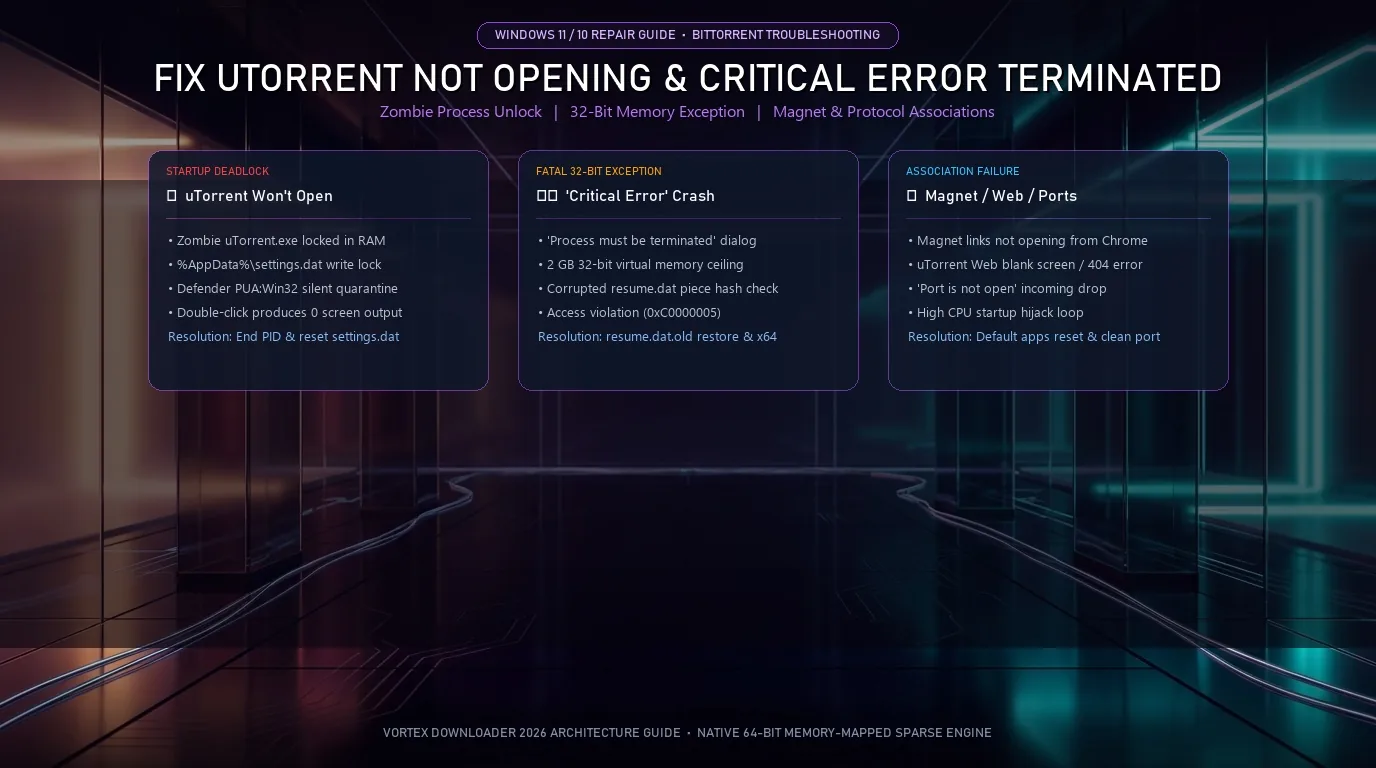
uTorrent fails to open, closes on its own, or triggers “A critical error has occurred and the process must be terminated” when Windows 11 Defender SmartScreen quarantines uTorrent.exe, zombie background processes lock %AppData%\uTorrent\settings.dat, browser protocol associations for magnet: break, or 32-bit virtual address space overflows. Clearing locked state files, re-associating protocol handlers, or upgrading to native 64-bit Vortex Downloader resolves these failures.
- 1. Quick Diagnostic Matrix: uTorrent Startup & Error Symptoms
- 2. Interactive Startup & Error Diagnostic Tool
- 3. Fix 1: uTorrent Not Opening When Clicked (Zombie Process & Settings Lock)
- 4. Fix 2: ‘A Critical Error Has Occurred’ & 32-Bit Memory Allocation
- 5. Fix 3: uTorrent Closing on Its Own After 3 Seconds (Adware Crashes)
- 6. Fix 4: Magnet Links & Torrent Files Not Opening from Chrome / Windows 11
- 7. Fix 5: uTorrent Web Not Opening or Stuck on Blank Screen
- 8. Fix 6: ‘Port is Not Open’ & Torrents Stopped Downloading
- 9. Fix 7: How to Stop uTorrent from Opening on Windows Startup
- 10. The Architectural Upgrade: Native 64-Bit Memory-Mapped Sparse Engine
- 11. Frequently Asked Questions (FAQ)
Quick Diagnostic Matrix: uTorrent Startup & Error Symptoms
When uTorrent fails to open, vanishes from your screen, or throws a crash dialog on Windows 11 or Windows 10, the root cause depends on whether the failure happens at the operating system process layer, the 32-bit virtual memory controller, or the browser protocol handler. Use the matrix below to match your exact desktop symptom to its immediate repair:
| Exact Error or Symptom | Underlying Cause (Windows 11 / 10) | Manual uTorrent Fix | Permanent Fix in Vortex |
|---|---|---|---|
| uTorrent Not Opening When Clicked | Zombie uTorrent.exe process locking settings.dat or Defender PUA quarantine. | End task in Task Manager; delete settings.dat.old. | Clean single-instance tray engine with zero zombie tasks. |
| A critical error has occurred and the process must be terminated | 32-bit virtual memory space (2 GB ceiling) fragmented during resume.dat hash check. | Restore resume.dat.old; cap manual cache at 512 MB. | Native 64-bit architecture with unlimited RAM access. |
| uTorrent Keeps Closing on Its Own (3-5 Seconds) | Embedded ad-renderer (uTorrentie.exe) crashing on malformed web scripts. | Set offers.left_rail_offer_enabled to false. | 100% adware-free binary (VirusTotal 0/58 Clean). |
| Magnet Links Not Opening in uTorrent from Chrome | Chrome / Windows 11 update cleared the magnet: protocol handler. | Re-assign MAGNET in Windows Settings > Default apps. | Instant clipboard & browser extension magnet catcher. |
| uTorrent Web Won’t Open / Blank Screen | Corrupted webui.zip cache or local server crashed on port 127.0.0.1. | Delete webui.zip in %AppData%\uTorrent Web. | Standalone native desktop app (no fragile browser wrapper). |
| Port is Not Open / Torrents Stopped Downloading | UPnP port mapping failed or Windows Firewall dropped inbound peer packets. | Lock static port; create Inbound TCP/UDP Firewall rule. | 16+ injected tier-1 public trackers + automatic NAT punch. |
Interactive Startup & Error Diagnostic Tool
Click your current error scenario below to display the exact terminal command, file path, and registry key needed to repair uTorrent:
Fix 1: uTorrent Not Opening When Clicked (Zombie Process & Settings Lock)
When you double-click the uTorrent icon on your desktop or taskbar on Windows 11 and absolutely nothing happens, your computer is not ignoring you. In the vast majority of cases, a previous uTorrent session crashed in the background but failed to terminate its process in system memory. Because uTorrent is configured as a single-instance program, the new launcher detects an existing PID and exits silently without displaying a window.
Step 1: Terminate Ghost 32-Bit Processes in Task Manager
- Press Ctrl + Shift + Esc to open Windows Task Manager.
- Click on the Processes tab. Scroll down to Background processes.
- Look for any instances named
uTorrent (32 bit),uTorrent.exe, oruTorrentie.exe. - Right-click each one and select End task. If multiple instances are running, terminate all of them.
- Try launching uTorrent again from your Start Menu.
Step 2: Clear Locked Configuration Files (settings.dat)
If terminating background processes does not work, the primary configuration file settings.dat has become corrupted or marked with an exclusive file lock by Windows NTFS. Deleting this file forces uTorrent to regenerate a clean profile on boot without touching your actual downloaded videos, games, or ISO files:
- Press Win + R to open the Windows Run dialog.
- Type
%AppData%\uTorrentand press Enter. - Locate the files named
settings.datandsettings.dat.old. - Copy them to your desktop as a backup, then delete them from the
%AppData%\uTorrentfolder. - Double-click uTorrent. It will open with default preferences.
Step 3: Check Windows 11 Defender PUA Quarantine
Modern Windows 11 installations include SmartScreen Reputation-Based Protection. Because uTorrent Classic bundles third-party promotional software and search toolbars, Microsoft Defender regularly flags the executable as PUA:Win32/uTorrent or PUABundler:Win32/uTorrent. In many cases, Defender silently quarantines uTorrent.exe without showing a notification.
To inspect your quarantine history: open Windows Security > Virus & threat protection > Protection history. If you see App blocked or Threat quarantined for uTorrent, click the dropdown, select Actions > Allow on device, or switch to an audited client with verified security credentials like our VirusTotal 0/58 clean BitTorrent client.
Fix 2: ‘A Critical Error Has Occurred’ & 32-Bit Memory Allocation
One of the most alarming errors uTorrent displays is a popup reading: “A critical error has occurred and the process must be terminated. Would you like to generate a crash dump?”
The Underlying Architectural Cause: Legacy uTorrent is compiled strictly as a 32-bit (x86) Windows binary. In 32-bit architecture, the Windows kernel enforces a rigid 2 GB virtual address space ceiling per process, regardless of whether your computer has 16 GB or 64 GB of physical DDR5 RAM. When uTorrent re-checks multi-gigabyte files on fast NVMe drives, connects to thousands of DHT peers, or parses a bloated resume.dat table, contiguous virtual memory addresses fragment completely. The moment memory allocation requests exceed the 2 GB boundary, Windows throws an unhandled access violation (0xC0000005) and terminates the process instantly.
Step 1: Restore the Backup resume.dat Table
If uTorrent crashes immediately upon reading its active download list, the resume.dat file contains corrupted piece hashes. Recover using the built-in backup file:
- Press Win + R, type
%AppData%\uTorrent, and press Enter. - Look for
resume.datandresume.dat.old. - Rename
resume.dattoresume.dat.corrupt. - Rename
resume.dat.oldtoresume.dat. - Relaunch uTorrent. Your previous torrent queue will load cleanly from the backup checkpoint.
Step 2: Cap the Manual Disk Cache Below 512 MB
By default, uTorrent attempts to increase its write cache when broadband speeds spike. Because the client cannot exceed 2 GB total virtual memory, an unconstrained cache triggers an immediate crash. Once the interface opens, press Ctrl + P > Advanced > Disk Cache. Check “Override automatic cache size” and enter 512 MB. For deeper troubleshooting on crash dump errors, read our complete guide on uTorrent crash dumps on Windows 11.
Fix 3: uTorrent Closing on Its Own After 3 Seconds (Adware Crashes)
A widespread complaint across Reddit forums is: “uTorrent opens for 3 to 5 seconds, loads the window, and then disappears completely without any error message.”
This self-closing behavior is rarely a torrent protocol error. Instead, it is caused by the secondary helper executable uTorrentie.exe. This helper runs an embedded Internet Explorer/Chromium web frame in the sidebar and top toolbar to display paid advertising banners. When the ad server delivers an unparseable JavaScript payload or modern Windows 11 memory protection blocks the insecure web frame, the helper crashes and forces the parent uTorrent.exe process to exit.
How to Disable the Crashing Ad Engine in Preferences:
- Open uTorrent. Immediately press Ctrl + P to open Preferences before it closes.
- Click on Advanced on the left menu.
- In the Filter box, type
offers. - Locate the following parameters and toggle each value to false:
offers.left_rail_offer_enabled→ falseoffers.sponsored_torrent_offer_enabled→ falsegui.show_plus_upsell→ false
- Click Apply and OK. uTorrent will stop spawning the unstable web-view subprocess.
Fix 4: Magnet Links & Torrent Files Not Opening from Chrome / Windows 11
For many users, “uTorrent not opening” means clicking a magnet link on a torrent indexing website does nothing. The browser does not pop up uTorrent, and downloaded .torrent files show as generic white icons on your desktop.
Step 1: Re-Assign the MAGNET Protocol in Windows 11 Settings
- Press Win + I to open Windows Settings.
- Navigate to Apps > Default apps.
- Scroll down and click Choose default apps by protocol (or type
MAGNETin the search box). - Look for the
MAGNETURL protocol. If it is set to another application or unassigned, select uTorrent (or Vortex Downloader). - Do the same for file extension
.torrentunder Choose default apps by file type.
Step 2: Reset Google Chrome Protocol Handlers
If you previously clicked “Always block” or accidentally closed Chrome’s protocol permission dialog, Chrome suppresses all future magnet link clicks:
- In Google Chrome, open
chrome://settings/handlersin the address bar. - Ensure that “Sites can ask to handle protocols” is checked.
- Look under the blocked list. If uTorrent or BitTorrent protocols appear under blocked applications, remove them.
- Fast Manual Workaround: Right-click the magnet link on the webpage > select Copy link address > open uTorrent > press Ctrl + U > paste the URL and press OK.
If your torrent opens but sits perpetually stuck with 0 seeds and 0 peers after loading the magnet, see our walkthrough on fixing stalled torrent swarm connections.
Fix 5: uTorrent Web Not Opening or Stuck on Blank Screen
If you downloaded the modern uTorrent Web client instead of uTorrent Classic, the software operates as a background server listening on loopback address 127.0.0.1 and renders through your browser. Common failures include an endless loading wheel, a blank black screen, or a 404 Not Found error.
- Press Ctrl + Shift + Esc, find
uTorrent Webin Task Manager, and click End task. - Press Win + R, enter
%AppData%\uTorrent Web, and press Enter. - Delete
webui.zipandnew_webui.zip. These files store local interface scripts and frequently corrupt during browser cache flushes. - Relaunch uTorrent Web. It will extract clean interface files and load your dashboard.
Fix 6: ‘Port is Not Open’ & Torrents Stopped Downloading
When uTorrent displays a yellow warning icon or reports “Port is not open” in its Setup Guide network test, incoming peer connections are blocked. While you can still download from seeders who have open ports, you cannot connect to peers behind firewalls, resulting in throttled download speeds and torrents that stall at 0 KB/s.
- Open uTorrent, press Ctrl + P, and click Connection.
- Under Port used for incoming connections, pick a fixed port number between 49152 and 65535 (for example,
52140). - Uncheck “Randomize port each time uTorrent starts” so Windows Firewall rules stay permanent.
- Check both Enable UPnP port mapping and Enable NAT-PMP port mapping.
- Open Windows Defender Firewall with Advanced Security, click Inbound Rules > New Rule, choose Port > TCP and UDP, enter your chosen port number, and set the action to Allow the connection.
Note on VPNs & CGNAT: If you are connected to a basic consumer VPN without port forwarding support, or your ISP uses Carrier-Grade NAT (CGNAT), port check tests will always show closed. In these cases, connecting through clients with injected tier-1 public trackers maintains active swarm speed.
Fix 7: How to Stop uTorrent from Opening on Windows Startup
One of the most persistent frustrations for PC users is uTorrent opening automatically every time Windows boots, consuming background RAM and slowing system boot times. In Windows 11, unchecking startup inside uTorrent often fails because the Windows Startup Registry service overrides the application toggle.
The 2-Step Permanent Startup Disable:
- Inside uTorrent: Press Ctrl + P to open Preferences > select General > uncheck “Start uTorrent when Windows starts” > click Apply.
- In Windows 11 Task Manager: Press Ctrl + Shift + Esc > click on the Startup apps icon (speedometer icon on the left panel) > find uTorrent > right-click and select Disable.
The Architectural Upgrade: Native 64-Bit Memory-Mapped Sparse Engine
If you are tired of resolving zombie background locks, 32-bit virtual memory termination crashes, and adware-induced self-closing loops, the fundamental issue is not your PC: it is uTorrent’s 15-year-old 32-bit architecture. Switching to a clean, modern 64-bit BitTorrent client eliminates these failure points entirely.
| Architecture & Swarm Feature | Legacy uTorrent Classic | ⚡ Vortex Basic (Free Forever) | 👑 Vortex Pro ($4.99/mo or $29.99 Life) |
|---|---|---|---|
| Process Memory Ceiling | 32-Bit (2 GB Virtual Address Cap) | Native 64-Bit (x64 Unlimited RAM) | Native 64-Bit (x64 Unlimited RAM) |
| Adware & Subprocesses | Spawns uTorrentie.exe | Zero Adware (0/58 VirusTotal Clean) | Zero Adware (100% Clean Workspace) |
| State & Crash Recovery | Fragile resume.dat table | Real-Time Sidecar Byte Checkpoints | Real-Time Sidecar Byte Checkpoints |
| BitTorrent Swarm Optimization | Manual Trackers Only | 16+ Injected Tier-1 Public Trackers | 16+ Trackers + 15-Min Automated RSS |
| File Selection & Priority | Basic Skip | Per-File Priority & Selective Download | Per-File Priority + Regex Filtering |
| Direct HTTP & 8K Video Grabber | None (Torrent Only) | Up to 3 Parallel Streams + 1080p | 32-Thread Turbo Engine + 8K 60FPS HDR |
Vortex Downloader (v1.1.3) is officially distributed via GitHub Releases (SHA-256: E61D27DEB21DE588A57167D8A85DACF7CF324F33A6375E0DF10235A48C041C39, verified 0/58 Clean on VirusTotal). To learn how it compares against qBittorrent, read our Vortex vs qBittorrent 2026 benchmark or explore the Vortex 64-Bit BitTorrent client overview.
Frequently Asked Questions (FAQ)
Why is uTorrent not opening when I double-click it on Windows 11?
uTorrent fails to open when a suspended zombie uTorrent.exe background process holds an exclusive file lock on %AppData%\uTorrent\settings.dat, or when Windows Defender Reputation-Based Protection silently quarantines the executable under PUA:Win32/uTorrent. Pressing Ctrl + Shift + Esc to end all suspended background processes and deleting settings.dat immediately restores desktop startup.
How do I fix ‘A critical error has occurred and the process must be terminated’ in uTorrent?
This fatal dialog occurs when uTorrent’s legacy 32-bit (x86) architecture hits Windows’ 2 GB virtual address space ceiling during hash verification or encounters corrupted piece headers in resume.dat. Press Win + R, open %AppData%\uTorrent, rename resume.dat to resume.dat.corrupt, and rename resume.dat.old to resume.dat to restore your active queue.
Why are magnet links and torrent files not opening in uTorrent from Google Chrome?
Chrome and Windows 11 feature updates frequently wipe the registered URL handler for the magnet protocol. Open Windows Settings > Apps > Default apps, search for MAGNET, and assign uTorrent (or Vortex Downloader) as the default handler. In Google Chrome, go to Settings > Privacy and Security > Site Settings > Handlers and ensure sites are allowed to ask to handle protocols.
Why is uTorrent Web not opening or stuck on a blank screen?
uTorrent Web fails when its local daemon (listening on 127.0.0.1) crashes silently or when temporary interface cache files corrupt. Press Win + R, open %AppData%\uTorrent Web, delete webui.zip and new_webui.zip, and relaunch the application as Administrator, or manually navigate to the local host address in your web browser.
How do I stop uTorrent from opening automatically when Windows starts?
First, open uTorrent, press Ctrl + P to open Preferences, select General, and uncheck ‘Start uTorrent when Windows starts’. Second, press Ctrl + Shift + Esc to open Windows Task Manager, select the Startup apps tab on the left sidebar, find uTorrent, and toggle its status to Disabled.