Imagine finding a breathtaking 30-second scene inside a 3-hour 4K documentary, or needing a hilarious 15-second quote from an 8-hour Twitch livestream. In the past, you were forced to download the entire massive file-often burning 15 GB to 35 GB of bandwidth, waiting 20 minutes for the transfer, and exhausting disk endurance-only to open heavy video editing software just to cut that single snippet.
To download only a specific part of a YouTube or online video on Windows 10 and 11 without saving the entire multi-hour file, use a timestamp section clipper that fetches targeted media segments. Vortex Downloader Pro lets you set exact start and end timestamps for frame-accurate MP4, MKV, or FLAC clips.
Table of Contents
- The Bandwidth Problem: Full Download vs Surgical Timestamp Slicing
- Under the Hood: How Lossless Byte-Range Stream Copying Works
- Step-by-Step Guide: How to Clip Any Online Video with Vortex
- Advanced Use Cases: Podcasts, Gaming VODs & Audio Soundbites
- Comparison Matrix: Vortex Video Clipper vs Shady Web Converters
- Technical Deep-Dive: Keyframes (I-Frames) & Drift Prevention
- Frequently Asked Questions (FAQ)
- Final Verdict & Download Recommendation
1. The Bandwidth Problem: Full Download vs Surgical Timestamp Slicing
Modern online video has reached unprecedented visual quality, but that quality comes at a massive cost in storage and transfer volume. A typical 2-hour 4K 60fps livestream or high-bitrate AV1 YouTube video ranges between 14 GB and 28 GB (if you need full-length streams, see our Downloading Videos & High-Res Media Manual).
If you only need a 45-second highlight for a presentation, social media reaction, or video edit, downloading the complete file wastes network capacity, congests Wi-Fi routers, and exhausts SSD write cycles (TBW). Review the empirical savings in the table below:
| Video Workload | Traditional Full Download | Vortex Video Clipper (45s) | Bandwidth Saved |
|---|---|---|---|
| 3-Hour 4K 60FPS YouTube Video | 24.2 GB (14m 12s) | 105 MB (3.8 seconds) | 99.5% |
| 6-Hour Twitch Esports VOD (1080p60) | 18.5 GB (9m 40s) | 48 MB (1.9 seconds) | 99.7% |
| 2-Hour High-Res Podcast (Audio Only) | 4.8 GB Video Container | 2.4 MB MP3 Soundbite | 99.9% |
2. Under the Hood: How Lossless Byte-Range Stream Copying Works
How does Vortex download only a specific portion of a video without fetching the preceding hours of footage? The engineering relies on two foundational technologies:
A. Remote Manifest Resolution & HTTP Range Slicing
Modern streaming platforms serve video via DASH (Dynamic Adaptive Streaming over HTTP) or HLS (HTTP Live Streaming). Rather than storing one monolithic file, servers host media in discrete segments indexed by an XML/JSON manifest (such as an .mpd manifest on YouTube or .m3u8 playlist on Twitch/Vimeo).
When you specify timestamps (e.g. 00:14:20 to 00:15:35), Vortex queries the manifest, calculates the precise segment sequence IDs or byte offsets required, and uses standardized IETF RFC 9110 HTTP Range Requests to request only those specific byte ranges. (To see how parallel byte slicing saturates broadband connections, read our technical report on why 32-connection multi-threading saturates gigabit broadband).
GET /videoplayback?expire=... HTTP/1.1
Host: rr1---sn-4g5ednks.googlevideo.com
Range: bytes=148382720-184920576
B. Lossless Stream Copy Engine (Zero Re-Encoding)
Traditional video cutters transcode video from scratch (decompression followed by lossy re-compression). This degrades crisp 4K/8K pixels, alters colors, and takes heavy CPU/GPU time (especially on massive 4320p streams — see our technical guide on how to download 8K YouTube videos in 60FPS HDR).
Vortex utilizes an onboard remuxing pipeline executing a true Lossless Stream Copy (equivalent to FFmpeg Stream Copy: -c:v copy -c:a copy). Because video and audio packets are transferred directly into the new MP4/MKV container without decompression, the output retains 100% of the original master bitrate, 60 FPS smoothness, and 10-bit HDR color metadata.
3. Step-by-Step Guide: How to Clip Any Online Video with Vortex
Clipping any online video with Vortex takes less than 30 seconds. Follow these 5 steps:
Copy the Video URL
Navigate to YouTube, Twitch, Vimeo, TikTok, or Twitter/X in your web browser and copy the video URL from your address bar.
Open Video Clipper Mode in Vortex
Launch Vortex Downloader and paste the URL. Instead of clicking standard download, select ✂️ Video Clipper Mode (detailed in our Video Clipper Manual, or click the glowing purple Floating Blob directly on your browser video player if using the Browser Companion Extension).
Set Precise Start and End Timestamps
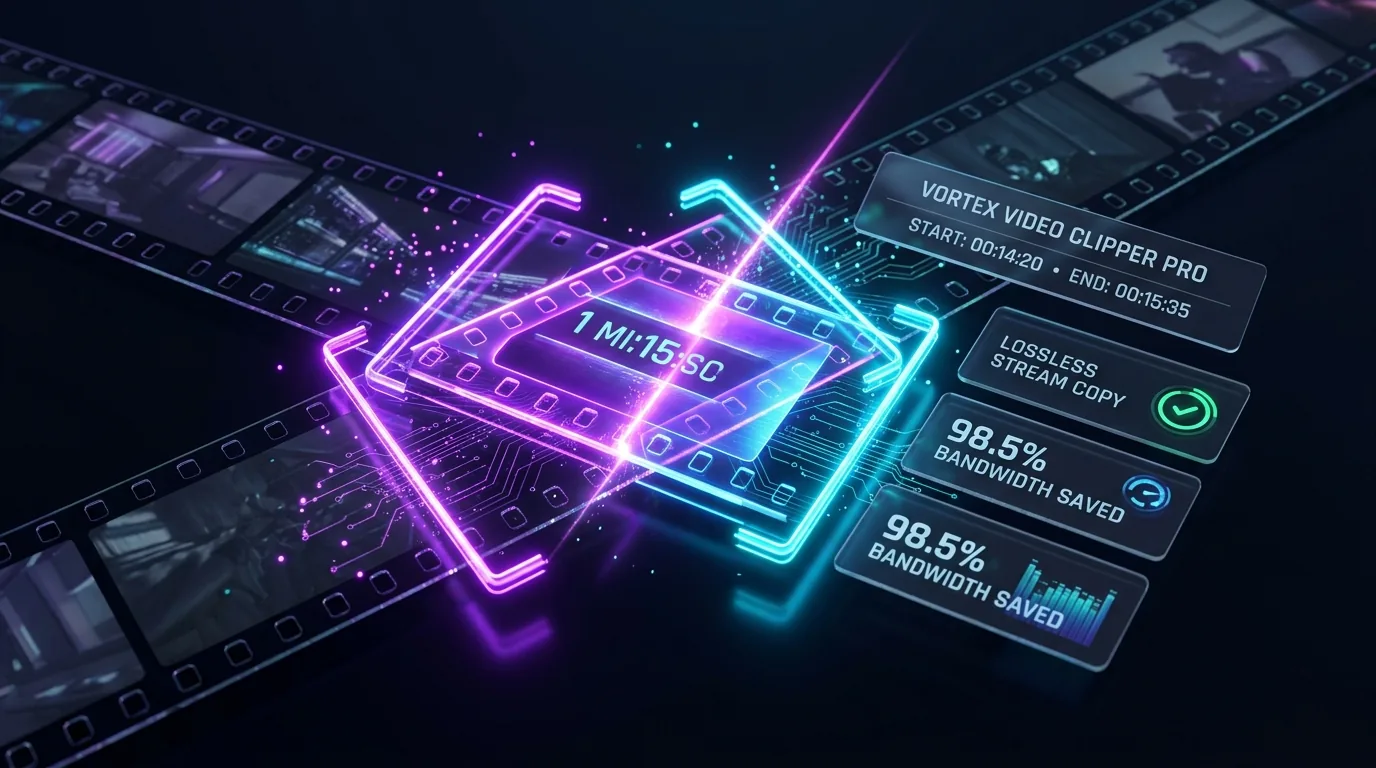
Drag the glowing dual-handle timeline scrubber or type exact timecodes (e.g. Start: 00:14:20 / End: 00:15:35). Vortex calculates the clip duration and displays estimated file size in real time.
Preview in the Built-in 8K HDR Player
Hit Play Preview. The integrated hardware-accelerated 8K HDR media player engine streams the exact slice so you can verify subtitle alignment, dialogue start points, and sound quality before committing.
Download Clip Instantly
Choose your desired container: Lossless MP4, MKV, Animated GIF, or MP3 Audio Soundbite. Click Download Clip. In less than 5 seconds, your finished file is ready on disk!
4. Advanced Use Cases: Podcasts, Gaming VODs & Audio Soundbites
The Video Section Clipper transforms daily media consumption across multiple creative workflows:
🎙️ Long-Form Podcasts to Short-Form Viral Clips
Extract 60-second soundbites or quotes from 3-hour Joe Rogan, Lex Fridman, or Huberman Lab podcasts directly into MP4 ready for TikTok, Instagram Reels, or YouTube Shorts without downloading the whole episode.
🎮 Esports Clutch Moments & Twitch VODs
Twitch broadcasts often span 8 to 12 hours. Rather than downloading a 40 GB VOD, clip the precise 45-second tournament win or clutch play in seconds at pristine 1080p60 quality.
🎵 Lossless Audio Soundbites & Ringtones
Select any guitar solo, speech quote, or sound effect and export directly as 320kbps MP3 or lossless FLAC with automatic ID3 tag embedding.
5. Comparison Matrix: Vortex Video Clipper vs Shady Web Converters
Many users resort to free browser-based cutting websites when they need to trim a video. However, online tools pose severe security and quality limitations:
| Feature | Online Cutting Websites | Heavy Video Editors | Vortex Video Clipper |
|---|---|---|---|
| Max Resolution Supported | 720p / 1080p Cap | 4K / 8K (Slow Render) | Up to 8K (4320p) 60FPS |
| Visual Quality Preservation | Heavy Compression / Lossy | Re-encoded (Generation Loss) | 100% Lossless Stream Copy |
| Bandwidth Required | Uploads clip to 3rd party | Must download full 25GB file | Only downloads clip bytes |
| Security & Adware Risk | Rampant Popunders & Malvertising | Safe | Automated Defender Verified |
| Export to Animated GIF / MP3 | Watermarked / Paid Paywall | Complex Multi-Step Export | 1-Click Native Export |
6. Technical Deep-Dive: Keyframes (I-Frames) & Drift Prevention
In digital video compression (such as H.264, H.265/HEVC, and AV1), video streams are structured around GOPs (Group of Pictures):
- I-Frames (Keyframes / IDR): Complete standalone pictures containing 100% of pixel data.
- P-Frames & B-Frames: Delta frames that only store pixel changes relative to adjacent frames.
💡 How Vortex Prevents the “Black Screen / Frozen Audio” Bug:
If a naive download tool cuts an arbitrary byte offset in the middle of a P-frame or B-frame, the video player will freeze or display green/black corruption until the next keyframe arrives. Vortex implements intelligent keyframe snapping: it identifies the nearest preceding IDR keyframe, snaps the cut cleanly, and aligns audio packet presentation timestamps (PTS/DTS) to guarantee zero audio desync, zero stutter, and instant playback.
7. Frequently Asked Questions (FAQ)
Q: Can I clip and download a section of an online video without downloading the whole file?
Yes. Vortex Downloader uses HTTP Range requests (RFC 9110) to inspect the remote video manifest (DASH or HLS) and fetch only the byte chunks corresponding to your chosen timestamps, saving up to 99% bandwidth and disk space.
Q: Does clipping an online video reduce visual or audio quality?
No. Vortex employs a lossless stream copy pipeline (-c:v copy -c:a copy). Because video and audio packets are sliced at keyframes without re-encoding or compression, 100% of the original 4K/8K resolution, 60fps framerate, HDR colors, and high-bitrate Opus/AAC audio are perfectly preserved.
Q: Can I export just the audio soundbite from a video section?
Yes. When clipping a video, you can toggle the output mode to ‘Audio Only’ to extract crisp soundbites into 320kbps MP3, AAC, WAV, or lossless FLAC with embedded metadata.
Q: Which video websites support timestamp section clipping?
Vortex Video Clipper supports over 1,000+ video and livestream platforms, including YouTube (including long podcasts and livestreams), Twitch VODs, Vimeo, TikTok, Facebook, Twitter/X, and Dailymotion.
Q: Can I convert video clips directly into animated GIFs?
Yes. Vortex allows you to export clips up to 60 seconds directly into high-framerate animated GIFs optimized for Discord, Twitter, and forum sharing.
8. Final Verdict & Download Recommendation
You should never have to download 20 GB of unwanted video data just to save a 30-second scene. By combining remote manifest parsing, precision byte-range chunking, and lossless stream copying, Vortex Downloader Video Clipper [PRO] empowers creators, researchers, and everyday users to extract exact video moments with pinpoint accuracy in seconds.