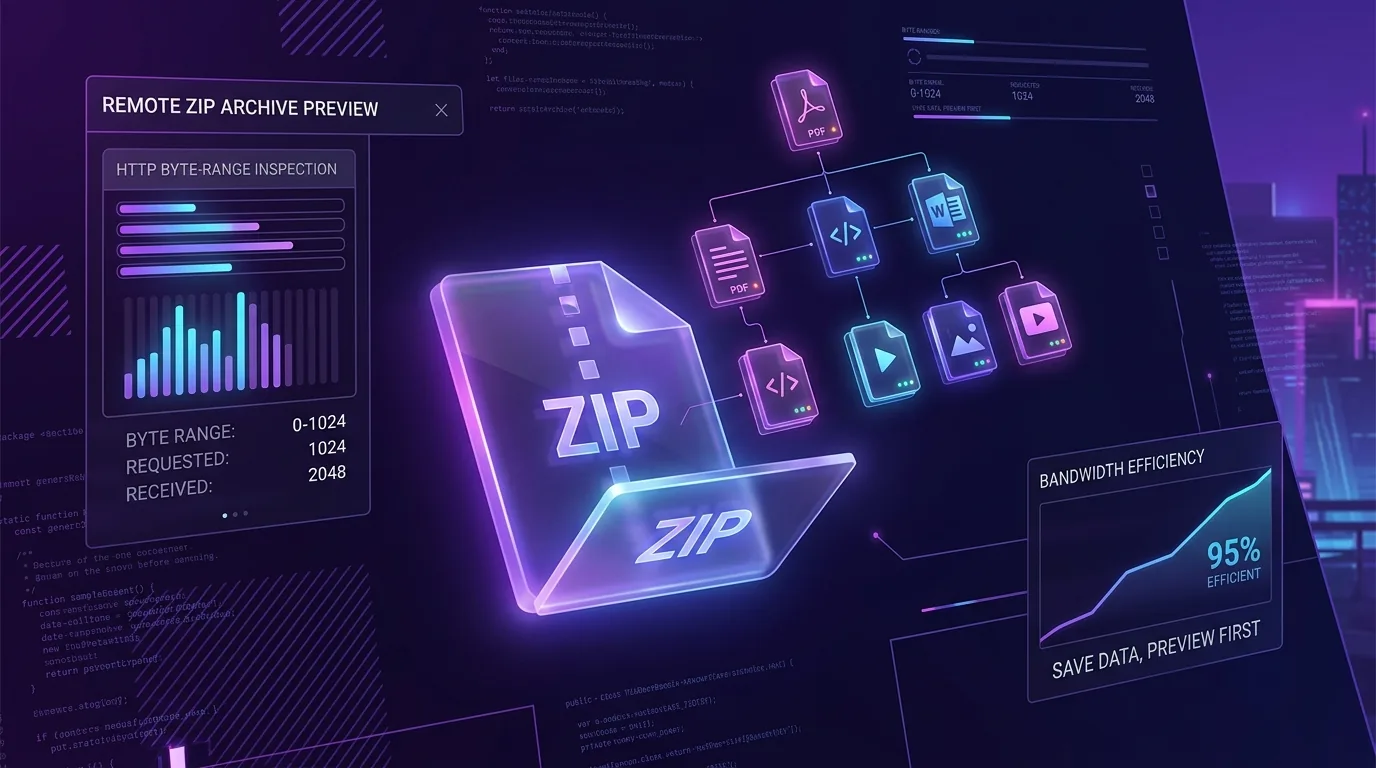
To preview and extract files from a remote ZIP archive without downloading the entire multi-gigabyte file, use an HTTP Range request client that reads the archive’s Central Directory header. Vortex Downloader’s Remote ZIP Previewer and Cloud Locker Downloader for PC fetch internal file trees in under 2 seconds, saving gigabytes of local storage.
Bandwidth Consumed: ~32 KB to 128 KB (vs. 10+ GB full file)
Protocol: HTTP/1.1 & HTTP/2 Byte-Range Slicing
Selective Extraction: Random-access Deflate decompression
Zero Cloud Upload: 100% Client-Side Local Verification
How to Preview and Selectively Download ZIP Files in 4 Steps
- Copy the Remote ZIP URL: Copy the direct download link of any remote
.zip file from your browser or cloud storage host. - Input into Vortex Downloader: Launch Vortex Downloader and paste the link into the URL bar, or click Inspect Archive in the browser companion.
- Explore the Virtual File Tree: Vortex queries the remote server’s End of Central Directory record and renders an interactive folder tree showing all contained files, sizes, and timestamps within seconds.
- Extract Only Selected Files: Check the specific files or folders you need and click Extract Selected. Vortex downloads only those precise byte offsets and decompresses them on the fly.
We have all experienced the frustration: you need a single 40-kilobyte configuration file, a documentation PDF, or a specific graphic asset buried inside a massive 15 GB software bundle, dataset, or game modification archive. In a conventional web browser, your only option is to initiate the multi-gigabyte download, wait thirty minutes while saturating your broadband connection, and finally extract the single file you actually needed before deleting the rest.
This wasteful “download everything first” paradigm is completely unnecessary. Thanks to the internal architecture of the ZIP container format and modern HTTP/1.1 and HTTP/2 range standards, it is technically possible to inspect the entire directory catalog and extract individual files from a remote server without transferring 99.9% of the archive’s payload. In this technical deep dive, we explore how remote ZIP inspection works under the hood and how to leverage it on Windows 11 using Vortex Downloader.
The Bandwidth Waste of Blind Archive Downloads
Standard web browsers such as Google Chrome, Microsoft Edge, and Mozilla Firefox treat file downloads as monolithic, opaque bitstreams. When you click a link ending in .zip, the browser sends an unconstrained GET request, receives a 200 OK response, and begins writing bytes to your hard drive starting from byte zero.
This introduces three massive inefficiencies for developers, digital archivists, and power users:
📉 Extreme Bandwidth Waste
Downloading a 10 GB archive just to retrieve a 500 KB readme or license key wastes 99.995% of the data transfer. On metered cellular connections or satellite broadband, this incurs real financial costs.
⏳ Local Storage & I/O Choke
Large archives require substantial free storage buffer space. Writing 20 GB to an SSD, extracting 20 GB, and then deleting the archive consumes SSD write endurance cycles unnecessarily.
⚠️ Malware & Archive Bombs
Downloading unknown archives from untrusted third parties exposes your machine to hidden malicious executables (e.g. .exe, .scr, or .vbs) disguised as media or documents.
Technical Anatomy of a ZIP File: Why the Index Sits at the Tail
To understand why remote preview is possible with ZIP files—but nearly impossible with formats like .tar.gz—one must examine the PKWARE ZIP File Format Specification.
When Phil Katz designed the ZIP format in 1989, archives were frequently written to multi-disk floppy media or written in a single streaming pass. Because the compressor could not know the final compressed sizes and CRC32 checksums of files ahead of time, the central directory could not be placed at the beginning of the file. Instead, the catalog was designed to be written at the very end of the archive.
[ Byte 0 ] ─────────────────────────────────────────────────────────────┐
  │ [Local File Header 1] (Signature: 0x04034b50)                      │
  │ [File Data 1] Compressed payload (Deflate / Store / BZIP2)          │
  │ [Optional Data Descriptor 1] (CRC32, compressed size)               │
  ├─────────────────────────────────────────────────────────────────────┤
  │ [Local File Header 2] (Signature: 0x04034b50)                      │
  │ [File Data 2] Compressed payload                                    │
  ├─────────────────────────────────────────────────────────────────────┤
  │ ... (thousands of individual compressed files)                      │
  ├─────────────────────────────────────────────────────────────────────┤
  │ [CENTRAL DIRECTORY HEADERS] (Signature: 0x02014b50)                │
  │   - File Name, Relative Offset of Local Header, CRC32               │
  │   - Compressed Size, Uncompressed Size, DOS Date/Time, Attributes   │
  ├─────────────────────────────────────────────────────────────────────┤
  │ [ZIP64 End of Central Directory Locator] (Optional, 0x07064b50)     │
  ├─────────────────────────────────────────────────────────────────────┤
  │ [END OF CENTRAL DIRECTORY RECORD (EOCD)] (Signature: 0x06054b50)    │
  │   - Total entries in Central Directory on this disk                 │
  │   - Total entries in Central Directory overall                      │
  │   - Size of Central Directory (bytes)                               │
  │   - Offset of start of Central Directory with respect to starting   │
  │   - .ZIP file comment length & comment                              │
[ Byte N (EOF) ] ───────────────────────────────────────────────────────┘
Notice the crucial architectural element: the End of Central Directory Record (EOCD) is exactly 22 bytes long (plus variable comment length) and sits at the very end of the file. It contains a direct pointer—the exact 32-bit byte offset—to the start of the Central Directory.
The Central Directory contains a complete, uncompressed manifest of every file in the entire archive, including their full directory paths, uncompressed sizes, compressed sizes, modification timestamps, and the exact byte offset where each file’s data begins!
The Two-Phase HTTP Range Handshake Explained
Because modern web servers (Nginx, Apache, Cloudflare, AWS S3, Google Cloud Storage, GitHub Releases) support RFC 9110 HTTP Range Requests, a sophisticated download manager does not need to download the file from byte zero. Instead, it executes a high-speed two-phase handshake:
Phase 1: Probing the Tail (EOCD Detection)
The client issues an HTTP request targeting only the final 65,557 bytes (the maximum size of an EOCD record including a 64KB archive comment):
GET /archives/huge-dataset-15gb.zip HTTP/1.1
Host: downloads.example.com
User-Agent: VortexDownloader/1.1
Range: bytes=-65536
Accept-Encoding: identity
The server responds with HTTP/1.1 206 Partial Content and delivers only the requested 64 KB slice. The client scans backwards through this buffer looking for the 4-byte EOCD magic signature: 0x06054b50 (or PK��).
Phase 2: Fetching the Central Directory
Once the EOCD is located, the client extracts the Central Directory starting byte offset (e.g., byte 16,105,920,400) and size (e.g., 142,880 bytes). If that byte range was not fully covered in Phase 1, the client makes a second targeted range request:
GET /archives/huge-dataset-15gb.zip HTTP/1.1
Host: downloads.example.com
Range: bytes=16105920400-16106063280
Within 100 milliseconds, the client receives the entire Central Directory table. In memory, it iterates through each Central Directory header (0x02014b50) and reconstructs the full directory hierarchy, displaying all 50,000 files without having touched the actual file data!
Phase 3: Selective File Extraction
When the user selects a specific file (e.g., docs/architecture.pdf, which begins at offset 4,821,000 and has a compressed size of 2,450,100 bytes), the client requests only that specific byte span:
GET /archives/huge-dataset-15gb.zip HTTP/1.1
Host: downloads.example.com
Range: bytes=4821000-7271100
The downloaded stream is fed straight into an onboard zlib / Deflate decompressor, which unpacks the uncompressed PDF directly to your chosen download folder. The total data transferred across the entire operation is roughly 2.5 MB—saving 99.98% of your time and bandwidth compared to downloading the 15 GB parent archive.
Feature Matrix: Vortex Downloader vs. IDM vs. 7-Zip vs. Cloud Tools
While Internet Download Manager (IDM) historically offered a rudimentary ZIP preview feature, it suffers from severe limitations: outdated dialog windows, lack of modern ZIP64 support, and no ability to inspect archives behind authenticated API headers. Below is how modern tools compare:
| Feature / Capability | Vortex Downloader | IDM (Internet Download Manager) | 7-Zip Desktop | Web Cloud Unpackers |
|---|
| Pre-Download Inspection | ✅ Native HTTP Range Slicing | ⚠️ Legacy ZIP Preview (Basic) | ❌ Must download 100% locally | ⚠️ Server-side proxy upload |
| Selective File Extraction | ✅ Random-Access Byte Slicing | ⚠️ Limited to simple ZIP archives | ❌ Requires complete local file | ❌ Re-downloads extracted file |
| ZIP64 Support (>4 GB Archives) | ✅ Full 64-bit EOCD Locators | ❌ Fails or freezes on large ZIP64 | ✅ Supported (local only) | ❌ Size capped at 100MB-500MB |
| Data Privacy & Zero-Trust | 🔒 100% Client-Side Local Memory | 🔒 Local Client | 🔒 Local Client | ⚠️ Archive uploaded to 3rd-party servers |
| Speed & Multi-Threading | ⚡ 32-Thread Slicing Engine | 16 Connections | N/A (Offline Archiver) | Throttled Web Server |
| Modern UI & Search Filtering | ✨ Glassmorphic Dark UI + Regex Filter | ❌ Win32 90s-era Dialog Box | Standard Explorer UI | Ad-Heavy Web Interface |
For a comprehensive comparison between modern download acceleration architectures and legacy managers, explore our in-depth teardown on The Best IDM Alternatives for Windows 11.
Step-by-Step: Inspecting & Extracting Remote Archives in Vortex
Vortex Downloader builds this HTTP Range inspection engine directly into its core protocol router. Follow these steps to preview and selectively extract files from any remote ZIP archive:
Step 1: Capture or Paste the ZIP Download Link
Copy the direct URL of any .zip file (for example, from a software release page, GitHub assets link, or remote file server). If you have the Vortex Browser Extension installed, click the floating Inspect Archive badge that automatically appears next to download links.
Step 2: Launch the Remote Archive Inspector
In Vortex Downloader, paste the URL into the analyzer dialog and select Inspect ZIP Contents instead of Download Full Archive. Vortex immediately dispatches a 64 KB probe to the remote host.
Step 3: Browse the Virtual File Hierarchy
The Archive Inspector modal opens, displaying the complete nested directory structure. You can sort by file size, filter by file extension (e.g. *.pdf, *.json, *.dll), and inspect exact compression ratios.
Step 4: Selectively Extract or Download in Full
Select the checkboxes next to the specific files or folders you need, select a destination folder, and click Extract Selected. Vortex downloads only those byte segments and decompresses them directly to your destination path. If you realize you need everything after all, simply click Download Full Archive to initiate full 32-connection accelerated downloading.
💡 Dealing with Torrents Instead of ZIPs? Vortex applies the exact same selective downloading intelligence to P2P swarms. Read our tutorial on how to download only specific files from a torrent to isolate individual episodes or files without downloading unwanted gigabytes.
To configure your default extraction destinations and parallel connection allocations, check out the Vortex Application Settings Guide.
Edge Cases: ZIP64, Encrypted Archives & Solid Compression
While standard ZIP files are straightforward to inspect, real-world networks present complex edge cases that any robust tool must handle:
1. Large ZIP64 Archives (> 4 GB or > 65,535 Files)
The legacy 1989 ZIP specification used 32-bit integers for byte offsets and 16-bit integers for file counts, capping archive sizes at 4 GB and 65,535 entries. Modern operating systems use the ZIP64 Extension. In ZIP64, before the standard EOCD record sits a ZIP64 EOCD Locator (signature 0x07064b50) which points to a 64-bit ZIP64 EOCD Record (signature 0x06064b50). Vortex Downloader fully supports ZIP64, enabling remote preview of massive 100 GB+ datasets.
2. Encrypted Archives (ZipCrypto vs. WinZip AES-256)
A common misconception is that password-protected ZIP archives cannot be previewed. In the ZIP specification, individual file payloads are encrypted, but the Central Directory is stored in plaintext (unlike 7z archives with header encryption enabled). This means you can preview file names, sizes, and timestamps without the password. When you click Extract Selected, Vortex prompts you for the decryption passphrase and unlocks the stream locally.
3. Why Solid Archives (RAR / 7-Zip) Cannot Be Previewed Randomly
Formats like .rar and .7z frequently use solid compression. In a solid archive, all files are concatenated into one continuous data stream before compression algorithms (like LZMA2) are applied. While you can read the catalog, extracting file #400 requires decompressing bytes from files #1 through #399 first. Because standard ZIP archives compress each file independently, ZIP remains the superior format for remote random-access selective extraction.
Security & Zero-Trust: Auditing Untrusted Archives Remotely
Remote ZIP preview is not merely a bandwidth-saving convenience; it is a vital zero-trust security mechanism. Cybercriminals frequently distribute malware inside ZIP files using techniques designed to deceive standard browser users:
- Double Extension Spoofing: Attackers name files
document.pdf.exe with hundreds of spaces to hide the .exe extension in Windows Explorer. Remote inspection exposes the raw, authentic extension immediately. - Zip Bomb Detection: A “decompression bomb” is a tiny 40 KB ZIP file that expands into petabytes of zeros, freezing your OS. Vortex calculates the compression ratio from the Central Directory headers (e.g.
Uncompressed: 5 TB / Compressed: 40 KB) and warns you before extraction. - Embedded Script Inspection: You can verify whether a software archive contains unexpected
.bat, .cmd, .ps1, or .vbs scripts before allowing a single byte of executable code onto your drive.
Frequently Asked Questions
Can you preview the contents of a ZIP file without downloading it?
Yes. As long as the hosting web server supports HTTP Range requests (indicated by the Accept-Ranges: bytes header), a client can request only the final 64 kilobytes of the file. This downloads the ZIP Central Directory table, allowing full exploration of the file manifest in milliseconds using less than 100 KB of bandwidth. For step-by-step methods to accelerate throttled cloud archives, see our walkthrough on PixelDrain & Rapidgator speed limit bypass on PC.
How much data does remote ZIP inspection consume?
Remote inspection typically consumes between 20 KB and 150 KB of data, regardless of whether the parent archive is 500 MB, 5 GB, or 50 GB. The data transferred corresponds only to the size of the Central Directory index records.
Does remote ZIP preview work on password-protected archives?
Yes, for standard encrypted ZIP archives. The ZIP specification stores file names, uncompressed sizes, and directory structures unencrypted in the Central Directory, while only the file data payloads are encrypted. You can browse all filenames remotely, though decrypting and saving a selected file requires providing the password.
Why can’t RAR or 7-Zip solid archives be previewed and extracted selectively?
Solid archives compress all files together as a single continuous block of data. To decompress a file near the end of a solid archive, all preceding files must be decompressed sequentially. Standard ZIP archives compress each file as an independent stream, making random-access byte extraction seamless.
What happens if a server does not support HTTP Range requests?
If a server responds with 200 OK instead of 206 Partial Content or uses dynamic chunked transfer encoding, byte slicing is not supported by that host. In this scenario, Vortex Downloader automatically alerts you and offers to download the full archive normally using multi-connection acceleration (similarly to how it handles multi-threaded downloads for TeraBox files).
Inspect Remote Archives with Vortex Downloader
Stop wasting gigabytes of bandwidth and storage on files you do not need. Preview remote archives, selectively extract individual files, and accelerate full downloads on Windows 11.